sudo yum -y install yum-utils

sudo yum -y groupinstall development

sudo yum -y install https://centos7.iuscommunity.org/ius-release.rpm

sudo yum -y install python36u

python3.6 -V

sudo yum -y install python36u-pip

sudo yum -y install python36u-devel


cd ~

mkdir environments
cd environments

python3.6 -m venv my_env


source my_env/bin/activate

deactivate

1、安装Apache

在Centos中,Apache的名称叫httpd,因为我们要安装的是httpd

yum install httpd

安装完成后,我们的Apache配置文件路径是:/etc/httpd/conf/httpd.conf

2、安装PHP

yum install php

安装完成后,我们的php配置文件路径是:/etc/php.ini

3、测试Apache

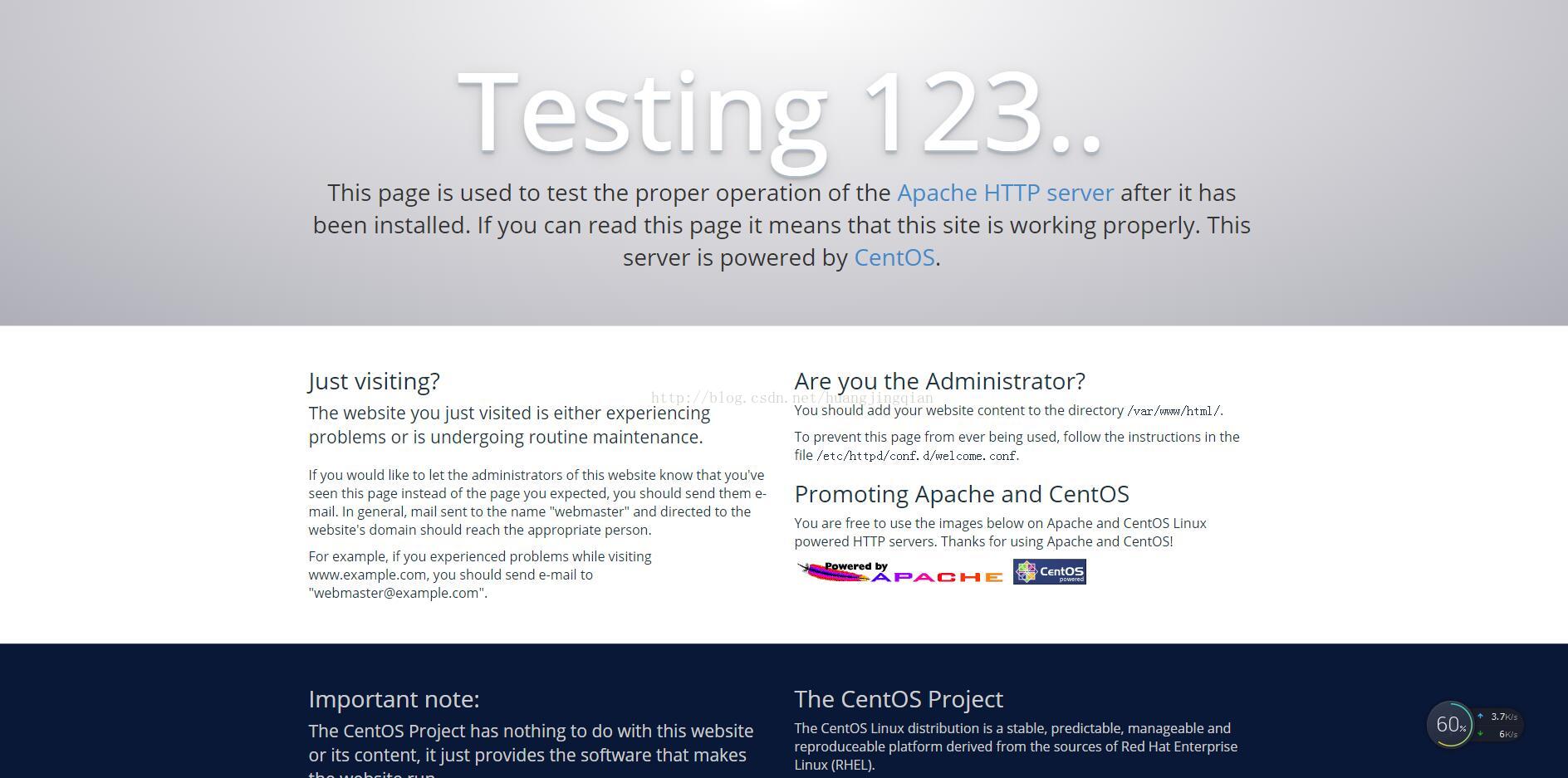
安装完成Apache后,我们可以使用http://你的服务器ip/测试访问Apache,如果能显示如下图,则说明Apache已经安装成功。

如果我们测试无法打开这个页面,那么首先要考虑几个情况:

1、是不是开启了iptables防火墙,如果是的话,可以用systemctl stop iptables关闭后再试

2、是不是开启了firewalld防火墙,如果是的话,可以用systemctl stop firewalld关闭后再试

3、是不是开启了SELinux功能,如果是的话,可以用setenforce 0临时关闭SELinux后再试

4、重启Apache 服务

systemctl restart httpd

如果上面三个问题都无关,那么请自行寻找原因。

4、修改Apache默认网站路径

Apache安装好后,默认的网站路径是/var/www/html,也就是说以后我们想部署网站的话,必须把文件放到这个目录下,例如我们下面测试一下。

echo “Hello,Welcome to China~” > /var/www/html/index.html

上面这个命令是在/var/www/html下面创建一个index.html文件,内容是Hello,Welcome to China~,此时我们刷新浏览器,访问我们的Apache网站应该可以看到页面。

Apache安装好后配置文件在哪里吗?没错,就是/etc/httpd/conf/httpd.conf,下面我们用vi或者vim(vim命令编辑文件可以带彩色,容易区分一点)命令来编辑它。

vim /etc/httpd/conf/httpd.conf

打开文件后,我们输入/docu,然后按下回车,这样就可以快速搜索到我们要找到内容。如下图,可以看到有两个/var/www/html的地方,分别是DocumentRoot “/var/www/html”和<Directory “/var/www/html”>。我们要修改的就是这两个地方,把/var/www/html修改成我们想要的路径,比如/home/www,那么修改后就是这样的。

重启Apache服务了

systemctl restart httpd

5、测试PHP环境


下面我们来测试一下php环境,刚刚我们已经安装了php了,那么正常情况下我们可以不用修改php的配置。下面我们试试创建一个php页面。

echo “<?php phpinfo(); ?>” > /home/www/index.php

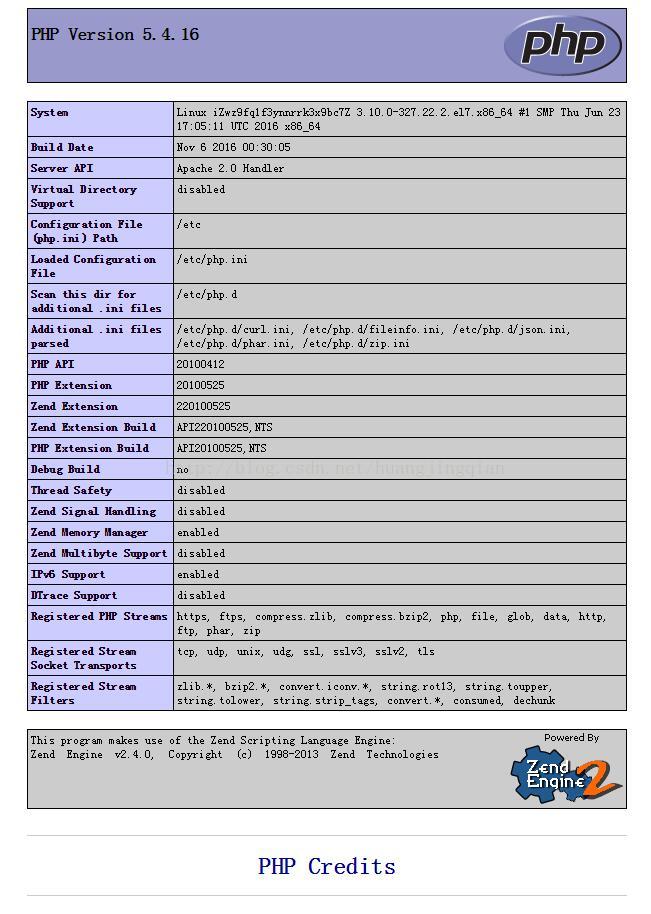
在浏览器中访问http://你的ip/index.php后可以看到如下效果则说明php安装成功。

Apache + PHP的运行环境我们就已经搭建起来了,那么问题来了。有些朋友可能会问Apache跟PHP是怎么关联起来的呢?

实际上我们安装php的时候,系统已经自动添加了php的模块文件到Apache的安装目录下,即/etc/httpd/conf.d,在这个目录下我们可以看到有一个php.conf的文件,这个就是Apache关联php模块的配置。

在Apache的配置文件最底下一行我们也可以看到IncludeOptional conf.d/*.conf,这句配置就是加载/conf.d下面的所有.conf文件,换句话说,以后我们如果不想直接修改Apache的配置文件httpd.conf的话,我们就可以单独写一个.conf文件放到这个目录下。

PHP的安装目录在/etc/php.d,配置文件是/etc/php.ini

原文地址:http://blog.51cto.com/66332211/1957961   

本文有改动。


一,使用方式

1,安装vsftp

1
sh auto_install_vsftp.sh install

2,新建ftp用户

下面的www为auto_install_vsftp.sh中指定的ftp权限账号,下面的password改为自己想要的密码。

1
sh auto_install_vsftp.sh useradd www password    

3,创建文件夹 /data/wwwroot/www,共需创建3个文件夹,接着在data目录下:

mkdir /data

mkdir /data/wwwroot

mkdir /data/wwwroot/www

cd /data

chmod -R 777 *

3.5:

开放端口:

firewall-cmd –zone=public –add-port=21/tcp –permanent

firewall-cmd –zone=public –add-port=20/tcp –permanent

firewall-cmd –reload

4.连接到ftp可使用软件FileZilla,  点击下载FileZilla window 32bit   ,点击进入FileZilla官网。注意,FileZilla有服务器端版本,也有客户端版本,不能下载错了

5. 如果连接报错220 auth tle ,请在filezalla的站点管理器里的加密选择:使用明文ftp

二,auto_install_vsftp.sh脚本内容

1
2
3
4
5
6
7
8
9
10
11
12
13
14
15
16
17
18
19
20
21
22
23
24
25
26
27
28
29
30
31
32
33
34
35
36
37
38
39
40
41
42
43
44
45
46
47
48
49
50
51
52
53
54
55
56
57
58
59
60
61
62
63
64
65
66
67
68
69
70
71
72
73
74
75
76
77
78
79
80
81
82
83
84
85
86
87
88
89
90
91
92
93
94
95
96
97
98
99
100
101
102
103
104
105
106
107
108
109
110
111
112
113
114
115
116
117
118
119
120
121
122
123
124
125
126
127
128
129
130
131
132
133
134
135
136
#!/bin/sh
#author: vim
#qq:82996821
#OS: Centos7.2
#filename: auto_install_vsftp.sh
users=/etc/vsftpd/vftpuser.txt    #账号配置文件
login=/etc/vsftpd/vftpuser.db    #账号数据库文件
generate_db="db_load -T -t hash -f $users $login"
virtual_user_config=/etc/vsftpd/vuser_conf
virtual_user_home=/data/wwwroot    #ftp根目录位置
guest_username=www    #指定ftp权限账号
#Source function library
/etc/rc.d/init.d/functions
install_vsftpd(){
setenforce 0
yum -y install db4-utils
yum -y install vsftpd
systemctl enable vsftpd
useradd -s /sbin/nologin ${guest_username}
mv /etc/vsftpd/vsftpd.conf /etc/vsftpd/vsftpd.conf.bak
cat >/etc/vsftpd/vsftpd.conf<<EOF
anonymous_enable=NO
local_enable=YES
write_enable=YES
local_umask=022
dirmessage_enable=YES
xferlog_enable=YES
connect_from_port_20=YES
pasv_enable=YES
pasv_min_port=60000
pasv_max_port=61000
xferlog_std_format=YES
listen=YES
pam_service_name=vsftpd
userlist_enable=YES
tcp_wrappers=YES
chroot_local_user=YES
chroot_list_enable=YES
chroot_list_file=/etc/vsftpd/chroot_list
pam_service_name=vsftpd
guest_enable=YES
guest_username=${guest_username}
user_config_dir=/etc/vsftpd/vuser_conf
allow_writeable_chroot=YES
EOF
mkdir /etc/vsftpd/vuser_conf
mkdir /etc/vsftpd/chroot_list
#i386 32位系统打开下列两行
#echo 'auth required pam_userdb.so db=/etc/vsftpd/vftpuser' > /etc/pam.d/vsftpd
#echo 'account required pam_userdb.so db=/etc/vsftpd/vftpuser' >> /etc/pam.d/vsftpd
#X64 64位系统打开下列两行
echo 'auth required /lib64/security/pam_userdb.so db=/etc/vsftpd/vftpuser' /etc/pam.d/vsftpd
echo 'account required /lib64/security/pam_userdb.so db=/etc/vsftpd/vftpuser' >> /etc/pam.d/vsftpd
touch /etc/vsftpd/vftpuser.txt
systemctl restart vsftpd
[ $? -eq 0  ]&&action $"Install vsftp:" /bin/true||action $"Install vsftp:" /bin/false
#开启防火墙,21连接端口,60000-61000为被动模式数据传输端口
iptables -A INPUT -p tcp -m state --state NEW -m tcp --dport 21 -j ACCEPT
iptables -A INPUT -p tcp --dport 60000:61000 -j ACCEPT
iptables-save >/etc/sysconfig/iptables
}
add_user(){
not_enough_parameter=56
retval=0
if "$#" -ne 2 ]; then
    echo "usage:`basename $0` <useradd> <user_name> <password>."
    exit $not_enough_parameter
fi
if grep -q "$1" "$users"then
   passwd=$(sed -n "/$1/{n;p;}" "$users")
   if "$passwd" "$2" ]; then
       echo "the user $1 already exists."
       exit $retval
   else
       echo "updating $1's password ... "
       sed -i "/$1/{n;s/$passwd/$2/;}" "$users"
       eval "$generate_db"
       exit $retval
   fi
fi
for in "$1" "$2"
do
    echo "$i" >> "$users"
done
eval "$generate_db"
cat >> "$virtual_user_config"/"$1" <<EOF
local_root=$virtual_user_home/$1
write_enable=YES
download_enable=YES
anon_world_readable_only=NO
anon_upload_enable=YES
anon_mkdir_write_enable=YES
anon_other_write_enable=YES
local_umask=022
EOF
mkdir "$virtual_user_home"/"$1"
chown $guest_username "$virtual_user_home"/"$1"
echo "==========$users============"
cat $users
}
case "$1" in
    'install')
      install_vsftpd
        ;;
    'useradd')
      add_user $2 $3
        ;;
    *)
    echo "usage: $0 {install|useradd}"
    exit 1
        ;;
esac

参考网址


youtube-dl –list-formats [url]
这是一个列清单参数

接着

youtube-dl -f [format code] [url]

eg:        youtube-dl -f 133+140 https://www.youtube.com/watch?v=GaAgtwbZV_E

注意:eg中“133+140”中 视频数字在前,音频数字在后,so is everything .

原文地址:https://blog.csdn.net/qq_34627459/article/details/74956569


写个脚本,放入以下:

yum install -y vim
yum install -y epel-release
sudo rpm –import /etc/pki/rpm-gpg/RPM-GPG-KEY-EPEL-7
yum repolist
sudo rpm –import http://li.nux.ro/download/nux/RPM-GPG-KEY-nux.ro
sudo rpm -Uvh http://li.nux.ro/download/nux/dextop/el7/x86_64/nux-dextop-release-0-1.el7.nux.noarch.rpm
yum repolist
yum install -y ffmpeg
ffmpeg -version

运行即可


如果之后错误为:

ffmpeg: error while loading shared libraries: libusb-1.0.so.0: cannot open shared object file: No such file or directory

那么:

yum install libusb1

发现超棒的方式。

—————————————————————-

首先:使用网站BMOVIES,这是一个即可看动漫也可看电影还界面美观广告合适的网站。缺点是英语。

为了更好的使用这个网站,就选择视频服务器Mycloud和openload中的openload,因为这个服务器可以从pc中加载字幕!

接着碰到另一个缺点:加载下好的字幕乱码。解决方式为:使用notepad打开,接着转为utf-8格式。原理:中文字幕多为GBK格式,而全球化当然用utf-8格式了。


不能更高兴!即将打开一段新生活!!!


一个更好的方式:使用字幕播放器 。

注意:

1)此软件仅可使用srt(如果是其他格式的话去在线转一下便可)。

2)乱码时,将字幕用notepad转为ANSI格式【这不是具体如utf-8、gbk之类的格式】。

1)刷新。

修改代码后跑到网站去看效果时必不可少的刷新操作。

firstly,sudo systemctl restart uwsgi。

secondly,点击游览器的刷新。

2)虽然base.html里已经包含{% load  static %},但没个子文件让需要添加{% load  static %},不然不能正常使用{%  static ” %}

来源:http://www.cnblogs.com/zdz8207/p/php-centos-uninstall-install.html

Centos7下PHP的卸载与安装nginx

CentOS上PHP完全卸载,想把PHP卸载干净,直接用yum的remove命令是不行的,需要查看有多少rpm包,然后按照依赖顺序逐一卸载。
1.首先查看机器上安装的所有php相关的rpm包
[root@localhost nginx]# rpm -qa | grep php
php-cli-5.3.3-22.el6.x86_64
php-pdo-5.3.3-22.el6.x86_64
php-gd-5.3.3-22.el6.x86_64
php-fpm-5.3.3-22.el6.x86_64
php-common-5.3.3-22.el6.x86_64
php-5.3.3-22.el6.x86_64
php-xml-5.3.3-22.el6.x86_64
php-pear-1.9.4-4.el6.noarch

2.按依赖顺序进行删除
rpm -e php-fpm-5.3.3-22.el6.x86_64
rpm-e php-pdo-5.3.3-22.el6.x86_64
rpm -e php-pear-1.9.4-4.el6.noarch
rpm-e php-cli-5.3.3-22.el6.x86_64
rpm -e php-5.3.3-22.el6.x86_64
rpm-e php-xml-5.3.3-22.el6.x86_64
rpm -e php-gd-5.3.3-22.el6.x86_64
rpm-e php-common-5.3.3-22.el6.x86_64

==========================
centos7安装nginx和php

nginx安装,参考网址:https://www.digitalocean.com/community/tutorials/how-to-install-linux-nginx-mysql-php-lemp-stack-on-centos-7

rpm -Uvh http://nginx.org/packages/centos/7/noarch/RPMS/nginx-release-centos-7-0.el7.ngx.noarch.rpm

yum install nginx

安装PHP和php-fpm
yum install –enablerepo=remi –enablerepo=remi-php56 php php-fpm

因为我的php安装的是5.6的,所以的指定这个源里面安装php-fpm,不然一直报错

修改php配置文件
vi /etc/php.ini
修改成0(这个配置值说是不安全的设置,参考网址:http://www.laruence.com/2010/05/20/1495.html)

cgi.fix_pathinfo=0
修改配置文件

vim /etc/nginx/conf.d/default.conf

server {
listen 80;
server_name www.scchary.com;
root /home/samba1/public_html;
#charset koi8-r;
#access_log /var/log/nginx/log/host.access.log main;

location / {
#root /usr/share/nginx/html;
#root /home/samba1/public_html;
index index.php index.html index.htm;
}

#error_page 404 /404.html;

# redirect server error pages to the static page /50x.html
#
error_page 500 502 503 504 /50x.html;
location = /50x.html {
root /usr/share/nginx/html;
}

# proxy the PHP scripts to Apache listening on 127.0.0.1:80
#
#location ~ \.php$ {
# proxy_pass http://127.0.0.1;
#}

# pass the PHP scripts to FastCGI server listening on 127.0.0.1:9000
#
location ~ \.php$ {
#root /home/samba1/public_html;
fastcgi_pass 127.0.0.1:9000;
fastcgi_index index.php;
fastcgi_param SCRIPT_FILENAME $document_root$fastcgi_script_name;
include fastcgi_params;
}

# deny access to .htaccess files, if Apache’s document root
# concurs with nginx’s one
#
#location ~ /\.ht {
# deny all;
#}
}
修改上面配置文件的时候,运行php文件的时候,老是显示没有找到,后来在这里找到了答案,参考网址http://www.nginx.cn/562.html

server {
listen [::]:80;
server_name example.com www.example.com;
access_log /var/www/logs/example.com.access.log;

location / {
root /var/www/example.com;
index index.html index.htm index.pl;
}

location /images {
autoindex on;
}

location ~ \.php$ {
fastcgi_pass 127.0.0.1:9000;
fastcgi_index index.php;
fastcgi_param SCRIPT_FILENAME /var/www/example.com$fastcgi_script_name;
include fastcgi_params;
}
}
这个配置中有很多不合理的地方,其中一个明显的问题就是root指令被放到了location / 块。如果root指令被定义在location块中那么该root指令只能对其所在的location生效。其它locaiont中没有root指令,像location /images块不会匹配任何请求,需要在每个请求中重复配置root指令来解决这个问题。因此我们需要把root指令放在server块,这样各个location就会继承父server块定义的$document_root,如果某个location需要定义一个不同的$document_root,则可以在location单独定义一个root指令。

另一个问题就是fastCGI参数SCRIPT_FILENAME 是写死的。如果修改了root指令的值或者移动文件到别的目录,php-fpm会返回“No input file specified”错误,因为SCRIPT_FILENAME在配置中是写死的并没有随着$doucument_root变化而变化,我们可以修改SCRIPT_FILENAME配置如下:

fastcgi_param SCRIPT_FILENAME $document_root$fastcgi_script_name;

所以我们不能忘记在server块中配置root指令,不然$document_root的值为空,只会传$fastcgi_script_name到php-fpm,这样就会导致“No input file specified”错误。

最后在测试php文件里面输出phpinfo的时候,出现了一个未定义时区的错误,修改了配置文件还是报错,最后重启了下php-fpm就好了

来源:http://blog.csdn.net/zxd0328/article/details/42403749

Git与GitHub安装与配置

Git与GitHub安装与配置

1、所用的Git版本是git-1.9.4-preview20140929.exe。

2、双击安装文件后进入以下界面:

3、点击两次“Next”到以下界面:

4、更改安装文件夹到:D:\Git\GitSetup\Git,然后出现以下界面:

5、点击“Next”,到以下界面:

6、此时,在Windows Explorer integration选项中将“Git Bash here”和“Git GUI here”打对勾;还有Additional icons选项打勾(如果没有打勾的话),如下图:

7、然后一直点击“Next”,默认选项即可进行安装,然后到以下界面,点击“Finish”安装成功:

8、双击GitHubSetup.exe,然后会出现以下界面:

9、点击“安装”即可,安装完成后桌面会出现GitHub快捷方式,然后出现以下界面则安装完成:

然后使用GitHub帐号密码登录进去(如果没有帐号密码,则去GitHub网址注册即可)。

10、设置Git的user name和email:桌面上打开Git Bash(如果没有,路径是:D:\Git\GitSetup\Git\bin\sh.exe –login -i),然后输入以下命令:

$ git config –global user.name “名字”

$ git config –global user.email 邮箱

例如:

$ git config –global user.name “John Doe”

$ git config –global user.email johndoe@example.com

在此时,我的设置是:

$ git config –global user.name “ZXD”

$ git config –global user.email 12157308**@qq.com

11、生成SSH密钥过程:

①查看是否已经生成了SSH密钥:cd ~/.ssh出现以下提示则没有密钥:

②生成密钥:$ ssh-keygen -t rsa -C “邮箱”例如:$ ssh-keygen -t rsa -C “12157308**@qq.com”,点击三次回车,则在C:\Users\lenovo\.ssh目录下有id_rsa和id_rsa.pub两个文件,然后密码为空。如图:

12、在github上添加ssh密钥,这要添加的是“id_rsa.pub”里面的公钥:首先,打开https://github.com/ ,登陆GitHub帐号,找到右上角的“settings”,点击出现以下界面,然后添加ssh。如图:

然后点击Add SSH key,在Title部分随便命名,在Key部分是id_rsa.pub文件里的内容(用记事本打开id_rsa.pub文件,然后复制即可)。最后点击“Add  key”按钮。

13、验证key是不是正常工作,在Git Bash下输入:$ ssh -T git@github.com,出现:

The authenticity of host ‘github.com (207.97.227.239)’ can’t be established.

RSA key fingerprint is 16:27:ac:a5:76:28:2d:36:63:1b:56:4d:eb:df:a6:48.

Are you sure you want to continue connecting (yes/no)?

则输入yes然后回车,然后如果出现:

Hi username! You’ve successfully authenticated, but GitHub does not # provide shell access.

则表明设置成功。如图:

14、创建版本库:

①创建空目录:

在Git Bash输入的命令:

$ cd d:Git/GitHub

$ mkdir learngit

$ pwd

pwd命令用于显示当前目录。这个仓库位于/d/Git/GitHub/learngit。

②通过git init命令把这个目录变成Git可以管理的仓库:

$ git init

Initialized empty Git repository in d:/Git/GitHub/learngit/.git/

15、一些常见的其他操作:

git add . //将改动的地方添加到版本管理器

git  commit -m “some changes”  //提交到本地的版本控制库里,引号里面是你对本次提交的说明信息

git remote add origin git@github.com:$name/$name.git

git push -u origin master  //将你本地的仓库提交到你的github账号里,此时需要你输入你的github的账号和密码,你输入就是了